


About
Volusion creates ecommerce software and provides online merchants with an all-in-one solution for payment processing, page design, and marketing. No programming is necessary to connect Shipwire to Volusion.
| Connection Information | |
|---|---|
| Who developed integration: | Shipwire |
| Support Contact: | Website |
| Status: | Clients actively using the connection, no known issues |
| Integrated APIs | |
| Inventory: | ✔ |
| Order Entry | ✔ |
| Shipping Rates | |
| Tracking | ✔ |
Features
Order Entry – Orders are submitted to Shipwire from your e-commerce store automatically via our Order Entry API. Once your online store receives an order, Shipwire takes care of the rest.
Order Tracking – All tracking information related to completed shipments is pulled automatically, including expected delivery dates.
Inventory Status – You can query your inventory status globally, by region, or by warehouse. Find out when inventory will be available for products that are out of stock.
Configuration
To do this you must turn on the Volusion API, add Volusion to your Shipwire account, and test. This should only take a few minutes.
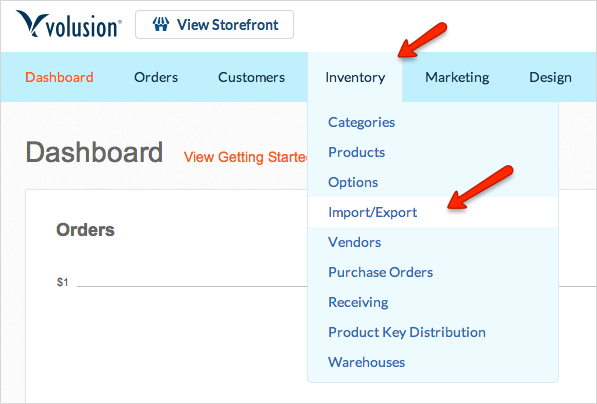
- In your Volusion account, turn on the Volusion API (you must have Volusion API support, Gold level or above). To do this, first navigate to Inventory > Import/Export
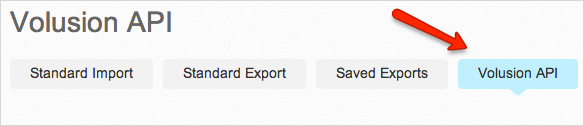
- Then click the “Volusion API” button
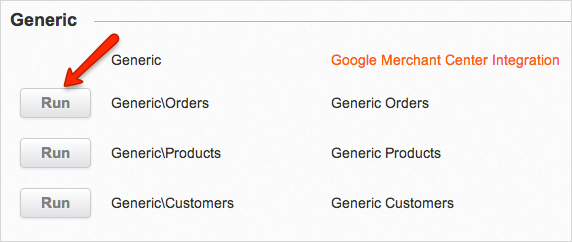
- Then scroll down and click the “Run” button for Generic/Orders under the Generic section
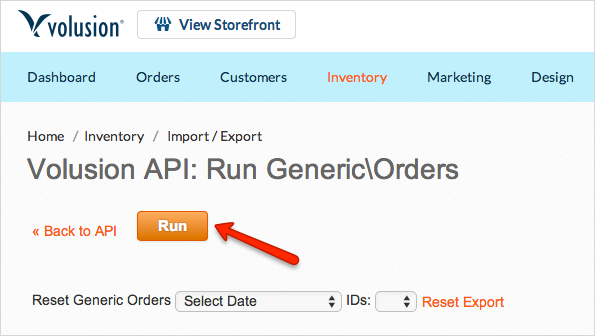
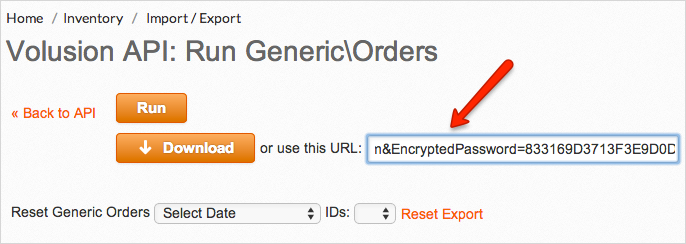
- Then click the “Run” button on the next screen
- Find the “EncryptedPassword” element in the URL, and save it for use in a later step (the URL will be long – you may find it easier to copy and paste the whole string into a text editor so you can see the whole string without needing to scroll). Make sure to not include the “=” at the start or the “&” at the end of the string. Your encrypted password will contain only numbers and capital letters.
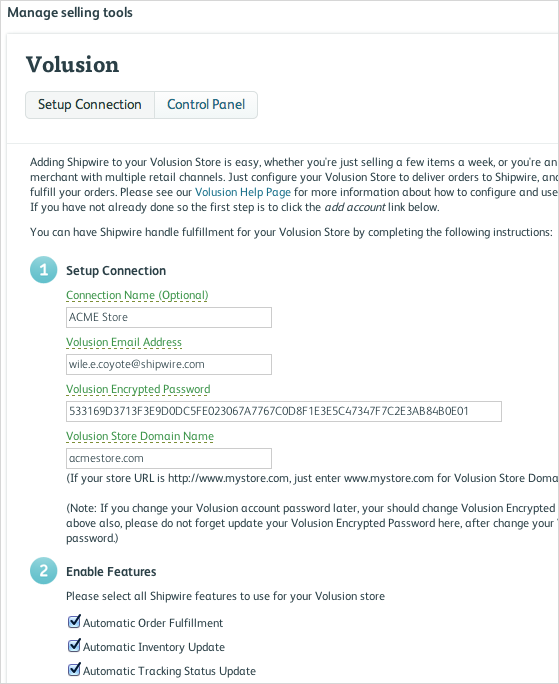
- In your Shipwire account, click your account name to access the drop down menu, selecting “Third Party Connectors”. Click “Add Selling Tool”, choose Volusion from the list, and click OK.
- Click the “Configure” button, then “add account” and enter the required information, then click “Save” (including the encrypted password mentioned above).
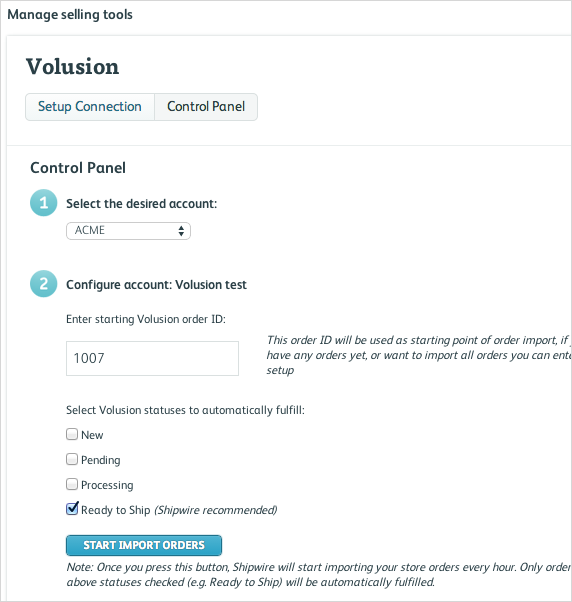
- Next, click the “Control Panel” tab and indicate what Volusion order number to start importing and choose what Volusion status(es) you want to use to trigger Shipwire to fulfill the order (we recommend “Ready to Ship”). Test the connection by placing a few orders in your Volusion store and setting the status as Ready to Ship.
- Shipwire will pull new orders from your Volusion store every hour. Shipwire will automatically recoginze the order and fulfill it once the order status is set to Ready To Ship” in Volusion admin.
- NOTE: In the Shipwire control panel, you can delete orders from the Shipwire queue by clicking Delete Checked Orders. You can also force an order to be fulfilled even if the order status is not set to Ready to Ship.
FAQ
Q.Volusion forces me to change my Password on a periodic basis. Is there anything I need to do in my Shipwire account?
A.To assure your security Volusion forces you to change the password on a periodic bases. The Shipwire “Volusion Encrypted Password” is based on your Volusion password. A change to this means you need to update your Shipwire configuration information. The instructions above outline how to get your Encrypted Password from your Volusion account.
Q.Why does the Shipping Method chosen by Shipwire not match my Volusion Cart selection?
A.Shipwire uses the concept of Service Levels to choose what carrier we use to ship your orders. Refer to the Cart Trouble Shooter Guide for more information about this. So your service level determines the carrier, not your Volusion Cart selection.
Q.I understand that Shipwire uses Service Levels to decide what carrier to use, but Shipwire is still choosing the wrong service type? What’s wrong?
A.Volusion has many carriers and service types mapped into it. Volusion passes Shipwire a three digit Shipping Method identifier that tells Shipwire what carrier and service is being selected. Shipwire then translates the three digit identifier into one of our service levels: GD, 2D, 1D, or INTL. Volusion users can override any of these codes and redefine what they mean. For example let’s look at code 108, which defaults to UPS Ground and which we map as Ground (GD). A user could edit this code to Expedited 1 Day Service. However we still receive the shipping code 108, and we translate that to the GD service level. So the user is cautioned that remapping a service code will not change how we translate that to our service levels.
NOTE: Remember that UPS (and other carrier) service IDs are not the same as what Shipwire maps in Volusion. For example, in this screen shot, “11” is is a UPS service ID incorrectly entered in the Service Code box. Shipwire does not receive this data. Instead, we receive the ID 109. Looking at the table below, 109 corresponds to GD and UPS Standard. Be careful not to confuse carrier IDs with Service Codes.

Use this table to match codes and Shipwire service types:
“3-digit code” => “Shipwire”,//”Volusion”
“215” => “INTL”, //”USPS Priority Mail International Flat Rate Envelope”,
“214” => “INTL”, //”USPS Priority Mail Express International”,
“213” => “INTL”, //”USPS Global Express Guaranteed Non-Document Rectangular”,
“212” => “INTL”, //”USPS Global Express Guaranteed”,
“211” => “INTL”, //”USPS Priority Mail International”,
“210” => “INTL”, //”USPS First-Class Mail International”,
“207” => “GD”, //”USPS First Class”,
“206” => “1D”, //”USPS Express”,
“220” => “1D”, //”USPS Express Mail Envelope”,
“205” => “2D”, //”USPS Priority Box”,
“218” => “2D”, //”USPS Priority Envelope”,
“219” => “2D”, //”USPS Priority Box”,
“204” => “GD”, //”USPS Parcel”,
“203” => “GD”, //”USPS BPM (Bound Printed Matter)”,
“202” => “GD”, //”USPS Media Mail”,
“201” => “GD”, //”USPS Library”,
“855” => “INTL”, //”Royal Mail Before 12:00 Delivery Next Day”,
“854” => “INTL”, //”Royal Mail Before 10:00 Delivery Next Day”,
“853” => “INTL”, //”Royal Mail Before 9:00 Delivery Next Day”,
“852” => “INTL”, //”Royal Mail UK 48 hour”,
“851” => “INTL”, //”Royal Mail UK Next day”,
“602” => “1D”, //”Airborne Express”,
“603” => “INTL”, //”Australia Post”,
“604” => “INTL”, //”Yellow Freight”,
“605” => “INTL”, //”Emery Worldwide”,
“606” => “INTL”, //”BAX Global”,
“607” => “FT”, //”FedEx Freight”,
“159” => “INTL”, //”FedEx International Ground”,
“158” => “INTL”, //”FedEx International First”,
“157” => “INTL”, //”FedEx International Priority”,
“156” => “INTL”, //”FedEx International Economy”,
“155” => “1D”, //”FedEx First Overnight”,
“154” => “1D”, //”FedEx Priority Overnight”,
“153” => “1D”, //”FedEx Standard Overnight”,
“152” => “2D”, //”FedEx 2Day”,
“151” => “GD”, //”FedEx Express Saver”,
“141” => “GD”, //”FedEx Ground”,
“142” => “GD”, //”FedEx Home Delivery”,
“254” => “1D”, //”DHL Next Day 3:00 PM”,
“253” => “2D”, //”DHL 2nd Day”,
“252” => “GD”, //”DHL Ground”,
“251” => “INTL”, //”DHL WorldWide Express”,
“718” => “INTL”, //”Canada Post – Expedited US Commercial”,
“717” => “INTL”, //”Canada Post – Puropack International”,
“716” => “INTL”, //”Canada Post – Purolator International”,
“715” => “INTL”, //”Canada Post – Air International”,
“714” => “INTL”, //”Canada Post – Surface International”,
“713” => “GD”, //”Canada Post – Puropack US”,
“712” => “GD”, //”Canada Post – Purolator US”,
“711” => “INTL”, //”Canada Post – Xpresspost USA”,
“710” => “INTL”, //”Canada Post – Expedited Parcel USA”,
“709” => “GD”, //”Canada Post – Surface US”,
“708” => “GD”, //”Canada Post – Xpresspost Saturday”,
“707” => “GD”, //”Canada Post – Expedited Saturday”,
“706” => “1D”, //”Canada Post – Xpresspost Evening”,
“705” => “GD”, //”Canada Post – Expedited Evening”,
“704” => “1D”, //”Canada Post – Priority”,
“703” => “2D”, //”Canada Post – XPresspost”,
“702” => “GD”, //”Canada Post – Expedited”,
“701” => “GD”, //”Canada Post – Regular”,
“807” => “INTL”, //”Australia Post Express Post International”,
“806” => “GD”, //”Australia Post ECI Merchandise”,
“805” => “GD”, //”Australia Post ECI Documents”,
“804” => “GD”, //”Australia Post Air Mail”,
“803” => “GD”, //”Australia Post Sea Mail”,
“802” => “GD”, //”Australia Post Express Post Parcel”,
“801” => “GD”, //”Australia Post Regular Parcel”,
“113” => “INTL”, //”UPS World Wide Saver”,
“112” => “INTL”, //”UPS Worldwide Expedited”,
“111” => “INTL”, //”UPS Worldwide Express Plus”,
“110” => “INTL”, //”UPS Worldwide Express”,
“101” => “1D”, //”UPS Next Day Air Early A.M.”,
“102” => “1D”, //”UPS Next Day Air”,
“104” => “1D”, //”UPS Next Day Air Saver”,
“105” => “2D”, //”UPS 2nd Day Air A.M.”,
“106” => “2D”, //”UPS 2nd Day Air”,
“107” => “GD”, //”UPS 3 Day Select”,
“108” => “GD”, //”UPS Ground”,
“109” => “GD”, //”UPS Standard”,
“455” => “1D”, //”Next Day Air”,
“454” => “2D”, //”2nd Day Express”,
“453” => “GD”, //”3 Day Express”,
“452” => “GD”, //”5 Day Ground”,
“451” => “GD”, //”7 Day Ground Saver”,
“0” => “GD”, //”PLEASE SELECT”,
“500” => “GD”, //”Free Shipping (7 Day Ground)”,
“501” => “GD”, //”Online Delivery / No Shipping”,
“502” => “GD”, //”In-Store Pickup”,
“503” => “GD”, //”Rates Unavailable. We will contact you.”,
“504” => “GD” //”Shipping & Handling”