


The Basics
Shipwire inventory alerts automatically notify you when inventory levels fall below thresholds you set. Alerts can be triggered based on a minimum quantity in stock, or when your position falls below an estimated number of days on hand. Use inventory alerts to give you advance notice on when you should resupply your stock, and/or to know when levels are so low you may be losing sales.
Shipwire’s interface is very flexible and powerful: it allows you to setup as many (or as few) alerts as you want – including more than one per product, or alerts that span multiple products, or fulfillment centers, depending on your specific needs.
On this page:
- Accessing inventory alerts
- Adding alerts
- Editing alerts and notifications
- Making use of inventory alerts
Accessing inventory alerts
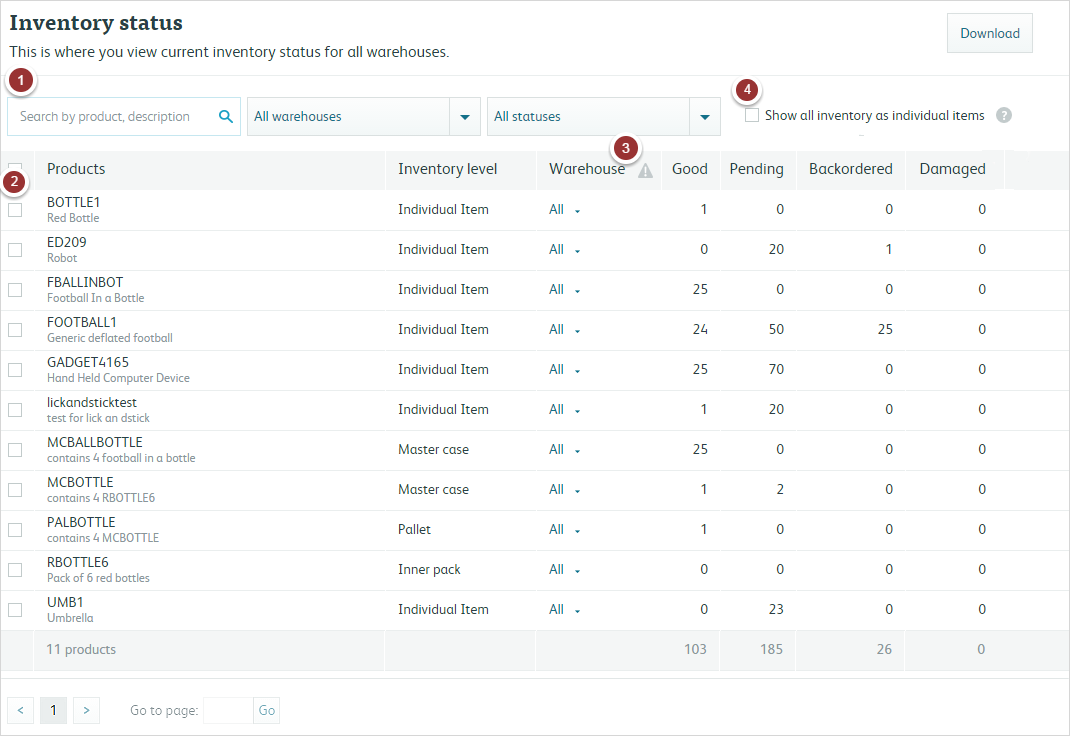
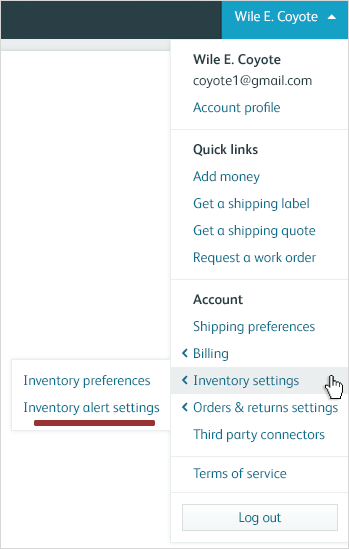
You can set new Inventory Alerts from either the Inventory Status screen or Inventory Alert Settings from your account drop down menu. See below below for a quick tour of key interface elements.
- The search bar lets you search, adjust, and view your inventory through several filters.
- Checking the box next to a particular SKU allows you to create an order, restock, or set inventory alerts for the selected SKUs.
- The Alert column shows you the alerts that are set for products. Your inventory is further categorized in the following columns.
- View as individual items only. If you have your product stored in bulk packaging, check this box to view your inventory count as base products.
Adding alerts
Adding new alerts is simple. The process is ordered and will guide you through the process, which is demonstrated below.
- There are two methods to begin.Either select to SKU from the Inventory Status as described above OR use the dropdown menu and select Inventory Alerts.
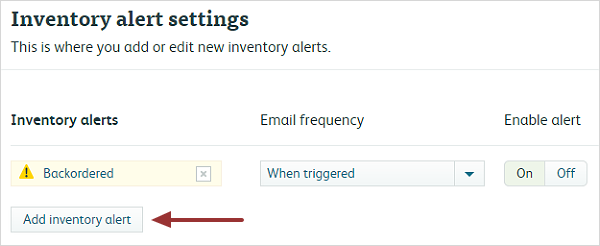
- Click on Add inventory alert. You can also view and edit any existing alerts from this section.
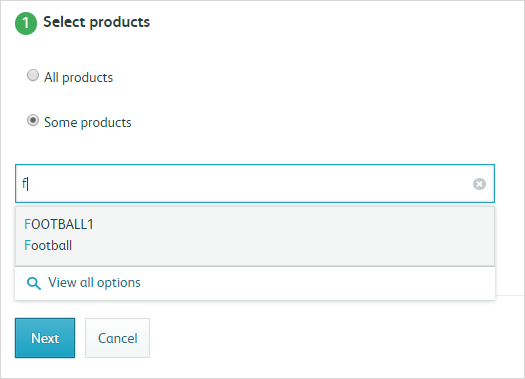
- Select the SKUs. Decide if the alert applies to all or select products. For select products, begin entering the SKU and a drop down menu will appear with the closest match products. You can add multiple products this way.
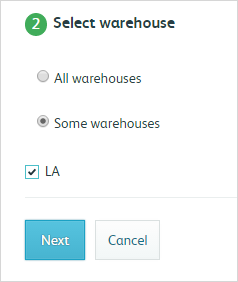
- Decide if you want the alert to apply to all or specific warehouses. When selecting specific warehouses, the available options are based on warehouses currently storing your inventory.
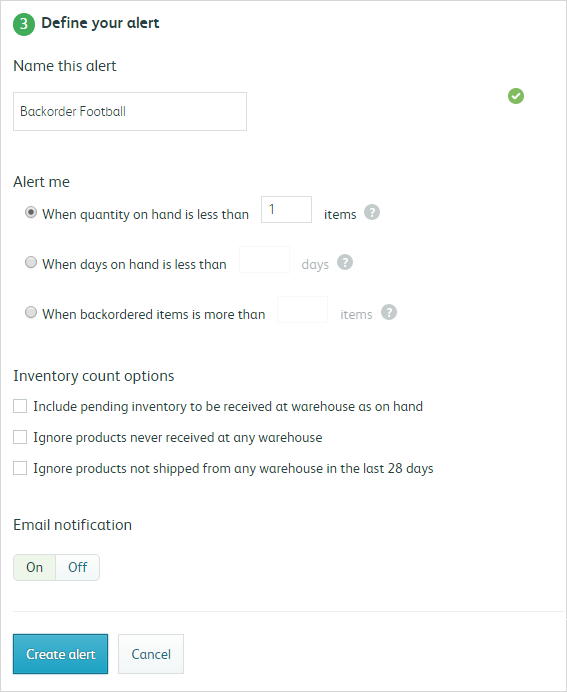
- Name your inventory alert. Specify if the alert will be activated by quantity on hand, days on hand, or amount backordered. Next, you will have several options of how you would want Shipwire to count inventory. Check all that apply, then decide if you would like an Email notification when the alert is triggered. Finally, click Create alert to complete the process.
Editing alerts and notifications
Once an alert is set, you can also access, edit, or add more alerts from the Inventory Status or Inventory Alert screens.
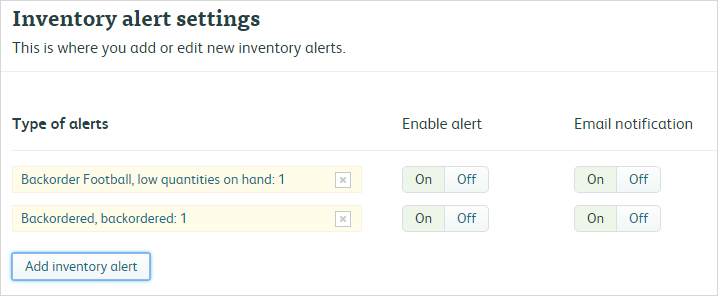
- In this summary screen, you can turn the alerts on or off, as well as select email preferences for the alerts.
- Clicking on the name of the alert will allow you to edit the alert in full.
- Depending on how your alerts are set, you will be notified via email or in the Alerts section of your dashboard, as pictured below.

Making use of inventory alerts
Inventory alerts are important for ensuring you always have sufficient inventory in stock to fulfill incoming orders. It can help you decide when to order more inventory by allowing you to predict when you will need to order products based on minimum inventory count, or on remaining days-on-hand (inventory velocity). Not using inventory alerts will impact your business negatively by causing you to lose sales due to low stock, etc.
Alerts can be created for both global or granular inventory levels, such as an alert for your stock levels of a particular product in all your fulfillment centers, and another for just a single fulfillment center.
Minimum quantity alerts
Set alerts to tell you when your inventory reaches a critical level. You can be alerted when inventory reaches a certain number, or when it is completely depleted in one or more fulfillment centers.
Inventory velocity alerts
In cases where a minimum quantity alert will not give you enough warning, such as unexpected sales spikes, velocity alerts can help. If you know you need to have inventory 3 weeks forward due to the reorder time, for example, you can us velocity alerts to intelligently tell you when you can expect to run out of stock based on the current order rate of your product.