

Shipwire 3rd Party Carrier functionality allows you to ship orders from any Ingram Micro Fulfillment Center using your own specified carrier, and to (optionally) upload a customized packing list. 3rd Party Carrier requests can take up to 48 hours approve.
Orders created using 3rd Party Carriers incur a $2.50 processing fee per package. International Orders incur an additional $3.50 commercial invoice fee per order. For US exported high value orders, there is an additional $20.00 commercial invoice fee per order. Standard handling fees apply.
Note that 3rd party freight orders require special handling and thus incur Work Order costs. The cost to complete these work orders are:
- Labor: Regional hourly rate (based on location and labor markets) for floor-loaded containers (Learn more)
- Pallet: $25 per pallet with a minimum charge of $50
On this page
Add your 3rd party carrier
The first step is to access your shipping preferences where the ‘add 3rd party carrier’ option is located.
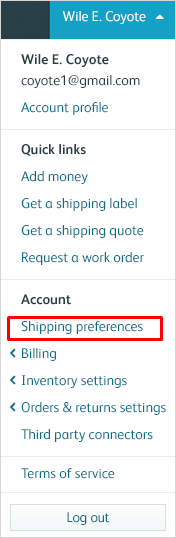
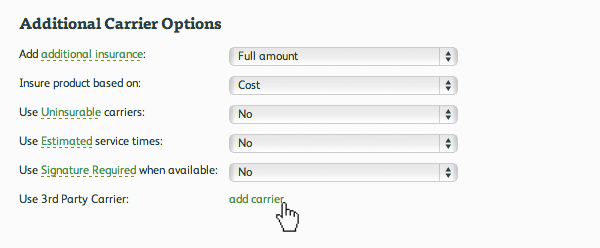
From your Shipping Preferences (Under your Account Dropdown menu), click on ‘add carrier’ link to add a new 3rd party carrier.
By clicking on the ‘add carrier link’, a pop up will prompt you to complete the ‘Add 3rd Party Carrier’ form. Fill in the additional requirements to successfully add your 3rd party carrier:
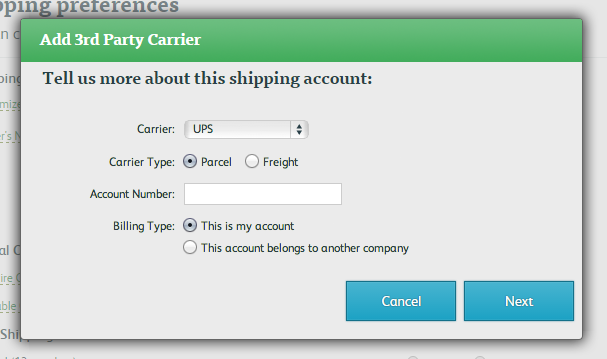
- Carrier Type: If your carrier will be shipping orders > 150lbs, or in pallet movements, select the Freight Carrier Option.
- Billing Type: If you are using another party’s account (e.g. your retail channel) then select ‘account belongs to another company’.
- Account Info: Fill in the rest of your shipping account details (if the account belongs to your company), or the account holder’s information if this is a 3rd party account.
Once you have added your account, it will be reviewed by Shipwire. You can still make changes to your account for up to 20 minutes after creating it (by clicking the edit link).
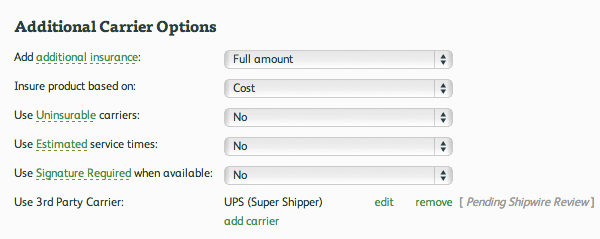
Once your account has been reviewed, it will no longer show the ‘Pending Shipwire Review’ text, and is ready to be used. You will now be able to select it in the Orders interface (see Shipping with a 3rd Party Carrier below).
Shipping with a 3rd Party Carrier
Once you have added at least one 3rd Party Carrier, and it has been reviewed by Shipwire, you will have the option to ship out your orders using any of the approved carriers. For parcel orders, please be sure to upload the correct shipping labels and packing slips to your order. Once your order is submitted, you can review your shipping label to package assignment and uploaded packing list, in the Order Details page.
Please note the following costs when using a 3rd Party Carrier:
- Orders created using 3rd Party Carriers incur a $2.50 processing fee per package. International Orders incur an additional $3.50 commercial invoice fee per order. For US exported high value orders, there is an additional $20.00 commercial invoice fee per order. Standard handling fees apply.
- 3rd party freight orders require special handling and thus incur Work Order costs. The cost to complete these work orders are:
- Labor: Regional hourly rate (based on location and labor markets) for floor-loaded containers (Learn more)
- Pallet: $25 per pallet with a minimum charge of $50
To use a 3rd Party Carrier, begin by submitting an order by going to the “Orders” tab, then “Create an order”. In step 2, select the ‘Use a 3rd Party Carrier’ option, then select the carrier you want to use. Only Shipwire reviewed carriers will appear in the list.
You can now see how your order will get packed. If your order includes Pre-Packed and Ready-to-Ship items, Shipwire may attempt to optimize your order’s packing by placing the Pre-packed and Ready-to-Ship items in a larger package.
If this is an available option, you can choose to use it and see how many labels your order will require.
Orders where this option is greyed out reflect that it is not an applicable choice. Click “Upload” to attach the 3rd party shipping labels that should be used with this order.
Shipwire will expect to have as many labels as there are packages in the order. The labels can be uploaded in a single file, or in multiple files. Shipwire supports the following file formats: PDF, GIF, JPEG, or PNG. Once the files are uploaded, match which labels with their appropriate packages in the “Specify page number” section.
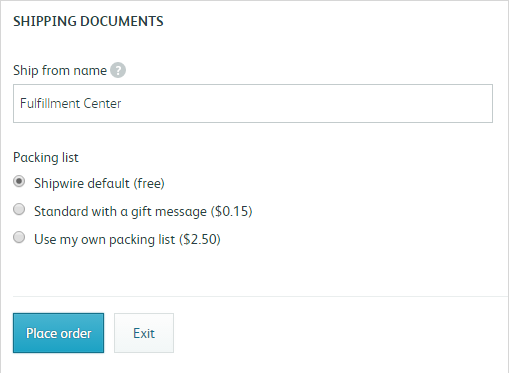
You also have the option to include a custom packing list with these orders. Click on Yes, upload my own packing list. Shipwire supports the following formats: PDF, GIF, JPEG or PNG.