We're Here To Help

X-Cart Gold (Lite Commerce)

Update Oct 2011: Due to lack of demand, Shipwire has eliminated support for X-Cart. We will continue to leave the module instructions here and in the Shipwire application. Please contact Shipwire support if you have any questions.

OLD INSTRUCTIONS

Shipwire provides a free module to connect X-Cart Gold 4.1.9. X-Cart Gold Order Fulfillment.

To integrate X-cart with Shipwire, just follow the instructions below.

A few things to note as you get started:

1) Your product SKU id’s in Shipwire should match the SKU field in X-cart for any products that you want to use Shipwire to fulfill.
2) there are three options for triggering Shipwire fulfillment from X-cart.

Option 1 (Recommended). Fulfill automatically after checkout, Admin triggered. Admin can trigger the fulfillment notice to Shipwire by clicking “Shipwire Fulfillment” Button on admin’s orders list page. Uou can fulfill multiple orders at a time by checking checkbox in front of order list item. (Note: only Queued, Processed or Backordered orders can be fulfilled, and after success of fulfillment, order status will be changed to “Completed”).

Option 2. Fulfill automatically after checkout. Order fulfillment notice will be automatically sent to Shipwire at the end of shopping checkout process. (Note: this is not recommended, but if admin set this option, after fulfillment, success of fulfillment will not change the status).

Option 3. Disable. Shipwire will not be notified of orders.

3) The Shipwire API’s XML response will be logged to a log file and in admin dashboard fulfillment status will be displayed.

4) We built our module for X-Cart Gold version 4.1.9

To Setup Shipwire and X-Cart:

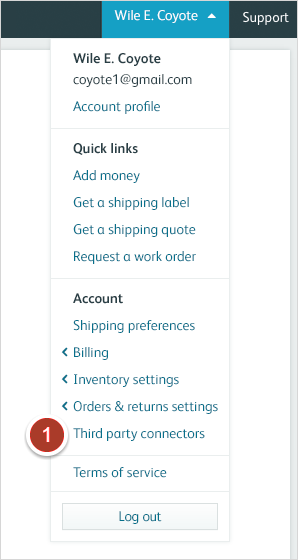
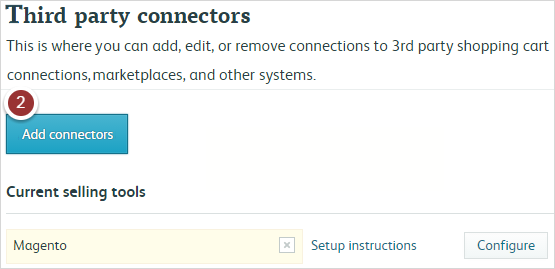
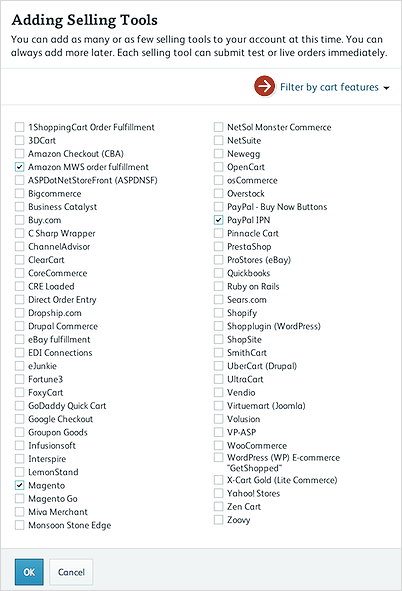
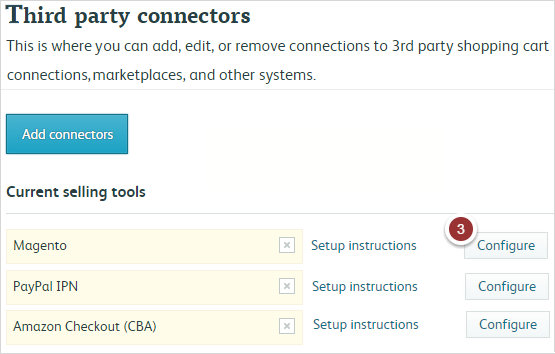
A) Log into Shipwire, go to “Sell” tools and add X-cart to your account.

B) X-Cart “Sell” tool includes configuration instructions and the Shipwire for X-cart module.

C) Install X-cart Module from Shipwire into your X-Cart folders. The module includes a set of “read-me” instructions that you should follow that includes the list of files that you will need to overwrite in X-cart.
Setup X-Cart database by Logging into your store admin screen and go to “setup_shipwire_db.php” page. Run through the Shipwire module configuration (see detailed instructions in the module’s “read-me” instructions file).

D) Confirm Shipwire connection to X-cart and insert secret Key generated by your X-cart module. Ensure your SKU’s in Shipwire match your SKU’s in X-cart. Product information required in Shipwire and its corresponding value in X-cart includes:

  • SKU name – IMPORTANT: In your X-CART product, “SKU” field should be specified as SKU name.
  • Description – “Product name” field in X-CART
  • Packing Type – You can specify either “Lick ‘n Stickā„¢” or “Pick and Pack”
  • Dimensions(Length, Width, Height) – Products Length, Width, Height is needed for shipping fee calculation for shipment.
  • Weight – “Products Shipping Weight” field in X-CART
  • Declared Value – “Price” field in X-CART

E) Test a few orders

Please contact Support (at) Shipwire (dot) com if you have any issues connecting X-cart to Shipwire.

[Gallery not found]

Please address the following errors:

    Please enter the e-mail address you used to register.
    We will e-mail you a new password shortly.

    Cancel

    An email has been sent to the address on file for your account. Please read and follow the directions provided within that email to reset your password.